Dynamic objects and variables
A scene can contain a fixed background as well as objects whose text, position or visibility depends on the program. The connection is created in two steps: in the designer you enable the dynamic property and on the Blockly workspace you attach a value to the new input.
So you don't select the variable in the list inside the designer. You use your project's normal variables and value blocks outside of it.
Which properties can be dynamic
Select one object. In its properties you will find the group Dynamic block inputs.
| Property | For which objects | What to connect on Blockly workspace |
|---|---|---|
| Text | Text Layers | A variable, number, text, or expression to become the displayed string. |
| X position | Text, regular bitmap, rectangle, ellipse and line | The numeric value of the horizontal position. |
| Y position | Same types as X | The numeric value of the vertical position. |
| Visibility | Also drawing layers | A Boolean value or condition that determines whether the object is rendered. |
For free Drawing, visibility is available from these options; it does not offer the same dynamic X/Y as a regular bitmap. Width, height, font, color, or line weight are not dynamic inputs connected by this group.
You turn on each feature separately. For example, one object can have variable text and visibility, but a fixed position.
Connection to project variable
- Select the desired object in the designer and fill in Layer name. For example, the name "Measured value" is more understandable in the program than the sequential designation of the text layer.
- Check Text for the text object; also Visibility, X position or Y position as appropriate.
- Click on Save.
- Value inputs will be added on the scene block. Their labels include a layer name and a property, for example Measured Value · Text.
- From the Variables category, connect the reading block of the desired variable. You can also add a calculation, comparison or block for creating text to the input.
- Ensure that the variable is given a value before the scene block is executed. Then run the program again.
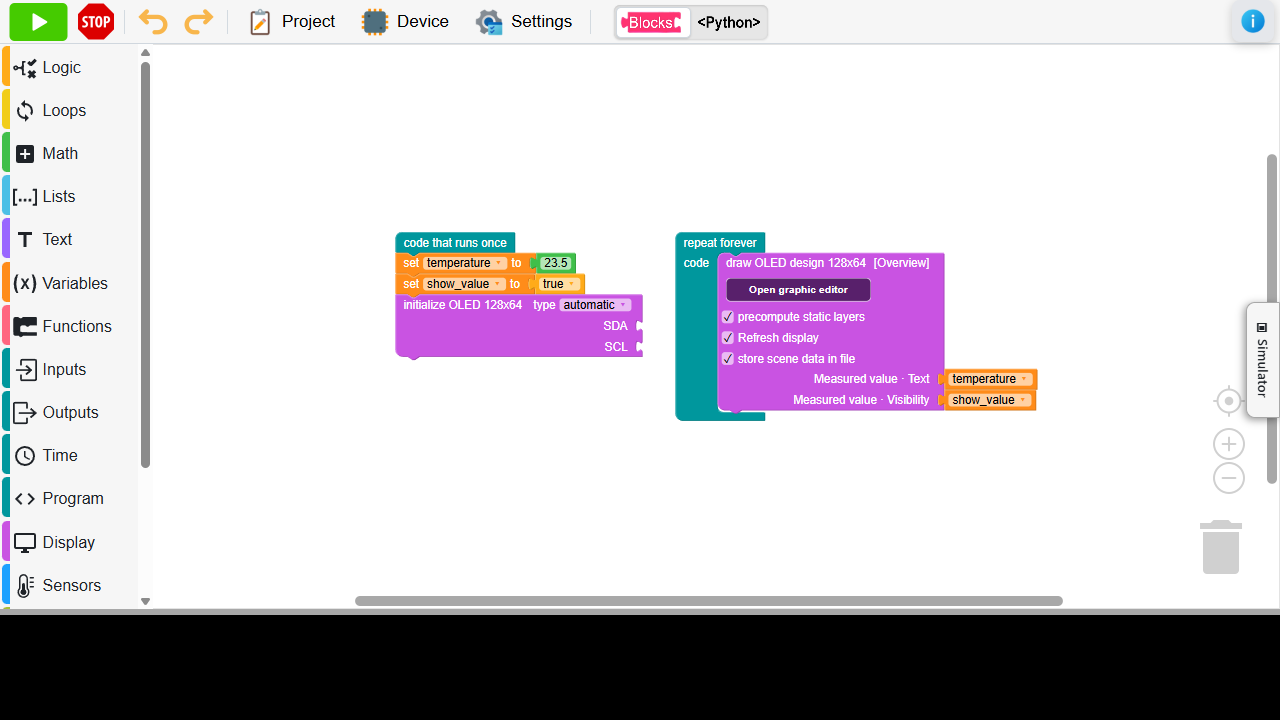
The picture shows the connection of the inputs themselves. In the full program, you must first set or fill the variables with measurements; just creating their names is not a substitute for getting the values.
Changing a variable does not redraw the image by itself
Attached values are read when the program executes the scene block. If the image is to be changed, place the rendering in a repeating section or call it after the data is changed. If you render the scene only once at start-up, you will no longer see any changes to the variables on the display.
Text and its formatting
Dynamic text is converted to a string in the program. So you can add the number directly, but the designer does not add a unit, a fixed number of decimal places or a prefix to it.
- Use project text blocks to combine label, value and unit.
- Perform rounding or other value adjustment before passing it to the scene.
- Fixed title and variable number can be two different layers. The title can then remain part of the static background.
The text in the object properties also serves as the default content for the design. According to it, you will judge the size and location of the text on the workspace. But the preview does not continuously read the variable connected on the Blockly workspace.
The selected font must contain characters that the program will print. Also consider the longest value: a short number takes up another place, for example, and a negative value or a longer text another. An image outside the display dimensions will be cropped, not automatically reduced to fit.
Dynamic position
X position and Y position specify the pixel position of the resulting display. Numbers are converted to integers when drawing. You can directly connect a variable, sum, range conversion or other numerical expression.
If you turn on only X, the vertical position will remain as designed. If you turn on both coordinates, the program controls both axes. Negative coordinates are possible; only the part of the object extending into its surface will be displayed on the display.
For line, dynamic X/Y moves the entire line while maintaining the distance of its endpoints. They do not replace the separate dynamic control of each end.
Dynamic visibility
Connect to Visibility preferably a logical variable or condition:
| The value | Result |
|---|---|
| true / True | The object is rendered. |
| false | The object does not render. |
The generated Python uses the Boolean evaluation of the appended value. So a numeric zero means hide, a non-zero display number. However, the text False is still non-empty text, not a False boolean. Use logic blocks to control visibility to keep meaning clear.
What happens without an attached block
An unconnected dynamic input will use a value stored in the scene: text, coordinate or visibility from the design. Therefore, you don't have to connect all switched on inputs right away.
When you turn off a dynamic property in the designer and save the scene, its input is removed from the block. Inputs of other unchanged properties retain their connections. After such modification, check the workspace and the generated code.
Render order
Every layer with at least one dynamic property is full dynamic. Even simply turning on variable visibility will therefore move an object from a static background to a dynamic group.
Rendering proceeds as follows:
- The static background of the scene, or an empty surface, is restored.
- The dynamic layers are drawn above it according to their order.
- If Refresh display is on, the finished image will be sent to the display.
You can recognize dynamic layers by ⚡ in the list and they are always above static ones. It is not possible to send a dynamic object below a static one with only a reorder arrow. If you need to cover it with another object, consider whether the overlapping object should also be part of the dynamic group.
Refreshing the background on the next rendering removes the previous appearance of dynamic objects. This way, for example, after shortening the text or moving the object, the old position does not have to be manually repainted with another drawing block.
Dynamic texts and fonts on the device
For dynamically changing text, it must be possible to draw future content as well. Therefore, the IDE loads the necessary font as a file .mfnt into /gfx when the block program is started. Drawing uses the espide_monofont library, which must be part of the device libraries.
Fixed text folded into a static background already exists as an image and its font is not needed for this rendering on the device. Therefore, do not confuse the number of fonts in the editor with the number of files that the program actually needs.
Check device libraries for espide_monofont import error. When transferring Python manually, also transfer the necessary fonts and scene files; the program text itself does not replace them.
Tips and pitfalls
| What do you observe | What to check |
|---|---|
| The new entry did not appear on the block | For the property, the dynamic option must be checked and the modification confirmed with the button Save. |
| The text in the designer remains the same | The editor displays the design value. You will only see the running variable when you execute the linked scene in the program. |
| The variable changes, the display does not | Verify the repeated execution of the scene block and the Refresh display option, or a separate redraw block. |
| The object is displayed unexpectedly | Check the value type on the Visibility input; non-empty text is not the same as logical false. |
| The text does not fit | Expect longer content, larger font, sign and unit. |