Settings menu
This menu changes the editor environment and the default behavior of some actions. Most of the settings are saved in this browser, so you don't have to select them again the next time you open the IDE.
Show Settings menu
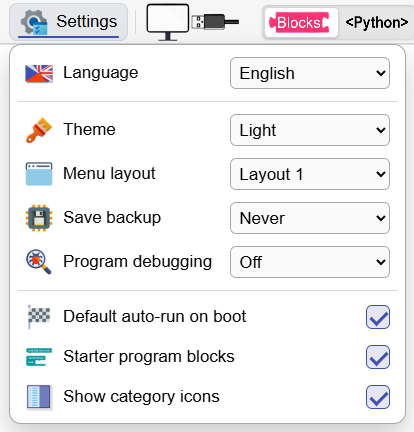
Language and appearance
| Item | Choices and Meaning |
|---|---|
 Language |
English, Czech, German, Spanish. Toggles the language of the environment including translated menus and block texts. It does not change your own variable names or the texts you wrote in the program. |
 Theme |
Light uses light surfaces, Dark dark. Toggles the appearance of the IDE and its supported panels, not the behavior of the program. |
 Menu layout |
Selects the layout of the controls. Individual variants are described below. |
Menu layout
| Option | What changes |
|---|---|
| Layout 1 | The new top bar starts with the Start and Stop buttons, followed by Back, Redo and the main menus. |
| Layout 2 | The new bar starts with the Project, Device and Settings menus. Start and Stop are in the middle part by the mode switch. |
| Original menu | It will return the original graphical top bar and the older menu of other options. It is not a different programming language or a different firmware. |
This tutorial uses Layout 1. When the window is narrowed, the new bar adapts to the available space: menu names can replace the icons themselves, and direct connection buttons can be hidden. Their actions remain in the Device menu.
Save backup
 The drop-down menu Save backup determines whether, with Run code, the entire block project is also saved before loading the program.
| Option | What it does |
|---|---|
| Never | It does not create an automatic backup at startup. Manual project saving remains available. |
| USB only | It creates a backup only when the block program is started via USB. This is the default option if the setting is missing. |
| Always | It creates a backup when the block program is started, regardless of the active supported transfer, i.e. also via Bluetooth, WebREPL or in the simulator. |
The backup is saved as /backup.blk.gz on the target file system. It will be overwritten on the next backup; it is not an archive of all versions. In the simulator, this is its virtual file system.
Automatic backup applies to block mode, not all text tabs. If the requested backup fails to be saved, the IDE will abort the program upload and display an error.
Restore can be found via Project → Open last backup. This action stops the running program and loads the backup as a block project.
The backup on the device and the copy on the computer have a different purpose
Automatic backup will help to recover the last uploaded project. Keep saving your own named versions via Project → Save to PC.
Debugging the program
 Here you choose highlighting of blocks and possible slowing down. The setting will be applied the next time the block program is loaded via Run Code; you can no longer modify a running program simply by changing the combobox.
| Option | What it does |
|---|---|
| Off | Does not add block debug handling to the uploaded program. This is the default mode in the absence of settings. |
| Immediate | It highlights executing blocks without added waiting between them. Therefore, with the fast program, you do not have to catch the individual blocks with your eyes. |
| Block/100ms | It slows down block progress by waiting 100ms at each debug step. |
| Block/250ms | Same principle with a 250ms wait. |
| Block/500ms | The same principle with a wait of 500 ms, i.e. half a second. |
| Block/1s | Same principle with waiting one second. It is useful when you want to follow the order of blocks very slowly. |
Debugging here describes a block program. When running a custom text tab, this block instrumentation is not added to it. Slowdown changes the timing of the program, so things like gameplay or motion control can behave differently.
Breakpoint and tracepoint are set on a specific block in its context menu, not with this combobox. With the Off mode, even their operators are not prepared for the program.
You can find a detailed procedure in the chapter Program debugging, including stepping and tracking without stopping.
In the simulator, stopping at breakpoints requires shared browser memory. Highlighting alone does not replace it for stopping support. Dashboard can work with highlight and slow down; concurrency with frames from breakpoints and tracepoints is blocked in the current implementation.
Check marks
Always execute code after startup
 Sets the default state of the Project → Autorun after startup option.
| Status | Meaning |
|---|---|
| Checked | The current autostart option will be turned on and reset to on the next time the IDE is loaded. |
| Unchecked | The current option will be disabled and will be restored as disabled the next time the IDE is loaded. |
On a new setup without a saved preference, automatic start is enabled by default. You can change the checkmark in the Project menu separately for the current job; this does not override this default preference.
Neither option loads the program or starts the board by itself. The autorun tag is only added when uploaded via Run code as described in Project menu.
Add starting blocks
 Specifies whether the IDE should prepare the basic program skeleton on an empty workspace.
| Status | Meaning |
|---|---|
| Checked | Enables the preparation of start program blocks. When switching from the disabled state, the IDE can offer to insert them into the current workspace as well. |
| Unchecked | It turns off the automatic preparation of starting blocks. You can add the necessary blocks manually from the Program category. |
The default state is on. This option is not related to the automatic start of the board. Switching off also does not mean removing the starting blocks that you already have in the project.
Show category icons
 Controls the picture icons for the categories in the left block menu.
| Status | Meaning |
|---|---|
| Checked | Categories display available icons. |
| Unchecked | Categories are displayed without these icons. |
The default state is on. Blocks are not hidden by this; Project → Block View changes their menu.
Where the setting remains
The language, theme, menu layout and preferences listed are stored in the browser's storage. Therefore, you do not have to have the same settings in another browser or after deleting the website data. A selection in Settings does not automatically change the configuration of the actual board.