Save variables to file (espide_pv_save)
What it does: Saves the selected variables to a text INI file using the pvstore.py library. The values will thus remain on the device even after a restart.
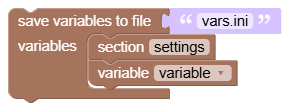
Inputs
- File: text with path, for example
"vars.ini". With no input connected, the generator will use this name. - Variables: list of blocks variable and possibly section. Not all project variables are saved automatically.
How to use the block
- Set variables to default values.
- Put the items variable in the list inside the save block and choose what you want to keep.
- Start the save block when you change the settings or after confirming with the button.
The block has no value output. If the list contains no variable, it just prints a warning and does not save the file.
Writing replaces file contents
Each save creates the content from the currently selected variables and overwrites the previous file. It doesn't just add changed items. Don't save fast loops on every pass: writing slows down the program and wears out the flash.
What values can be stored
The library distinguishes between integers and decimals, booleans, text, and simple lists. Tuples are loaded as lists. For lists, use items of the same type; mixed lists are stored as text items. Dictionaries, nested structures, and objects are not suitable format settings.
Text is truncated by trailing spaces when saving and reading. Text list items must not contain a comma because it is used as a delimiter; don't save multi-line text this way either.
Example of file content if you select variables rychlost and zvuk:
[settings]
rychlost = int:40
zvuk = bool:true
Tips and Tricks
- The device needs an importable library
pvstore.py, for example in/lib. It is already ready in the simulator file system. - Variable must have a value before saving. The library skips a variable not found and prints a message.
- If necessary, create the parent folder first; the storage block itself does not create it.
- Follow the errors in the terminal. The block does not return a successful write flag.
- Use load variables from file to restore settings. Backing up the entire project is described in separate chapter.